

Stream High Scores & Achievements System
Introduction
The High Scores and Achievements widget allows you to create a points and achievements system for your viewers and stream, based on live interactions. You can display these scores on your overlay in various ways. It is a highly effective tool to gamify your channel's growth by involving and rewarding your community.
- 📺 Multi-platform: Supports Twitch, Kick, and YouTube.
- 📦 Modular: Add/remove variables, change titles, colours, visible sections, and more.
- 💻 Local: Runs 100% via Streamer.bot locally, with no external dependencies.
- 💾 Auto-save: Scores are automatically saved after every update.
- 🌐 Multi-language: Interface available in French, English, Spanish, and German.
- 💰 One-off Payment: No subscriptions. Pay once, and the widget and all future updates are yours for life!
The Interface
The application features two main sections:
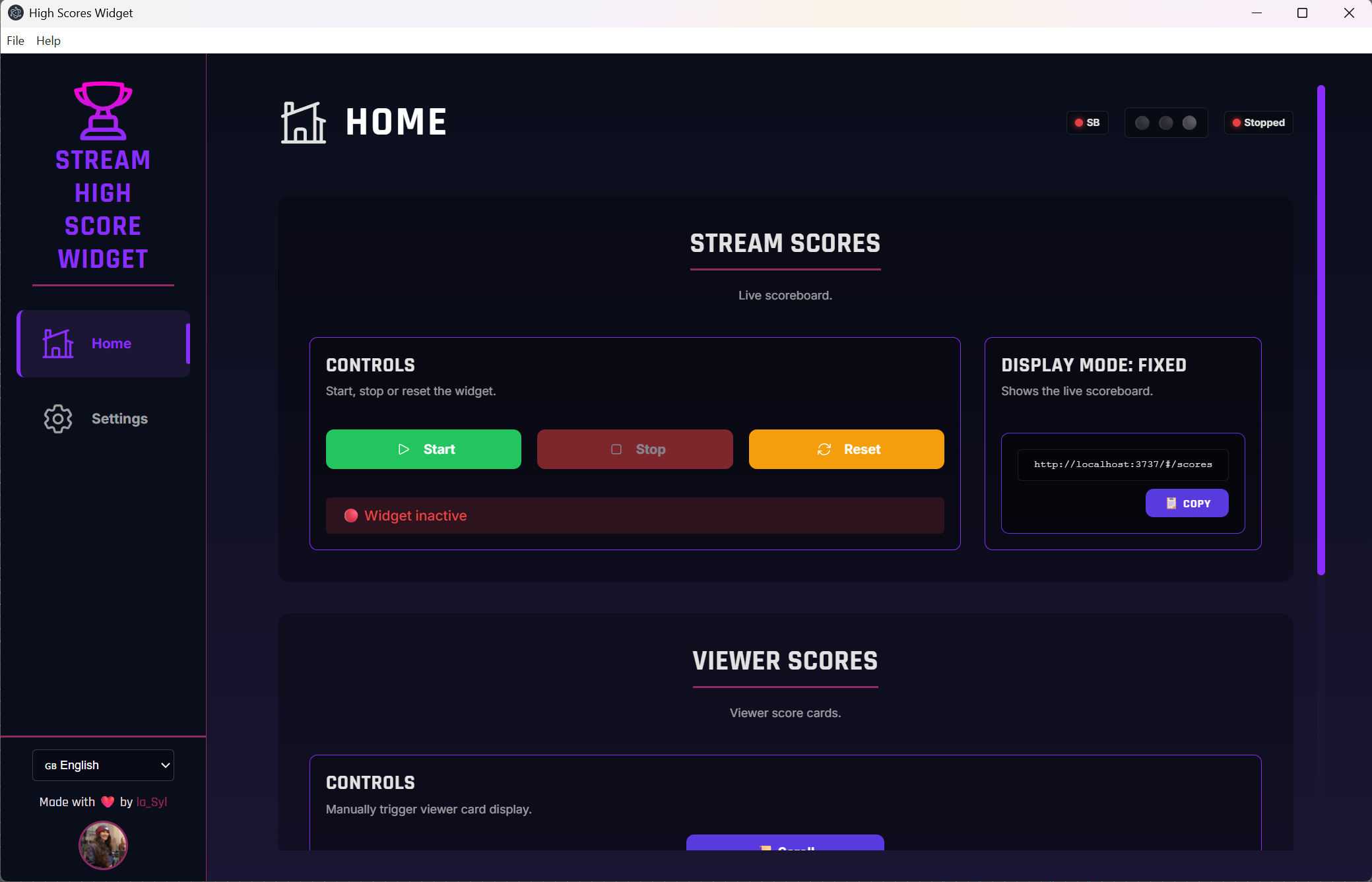
- The Home section (Accueil), where you find control buttons and links to the various browser sources (views) included in the widget.
- The Configuration section, where you set up the widget and customise your scores and achievements. Detailed configuration instructions are provided below.
Connection status indicators are located in the top-right header of every section, allowing you to check the widget's status at a glance, no matter where you are in the app.

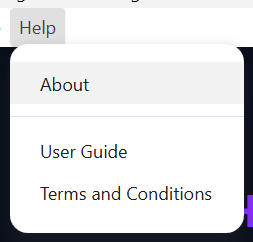
The help menu at the top links to this guide and the general terms of use. The "About" page contains version information, credits, and links to my social networks.
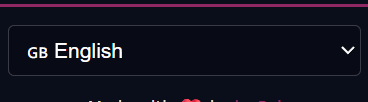
You can use the menu in the bottom-left corner to switch the interface language.
Configuration
You can configure the connection, controls, live scores, and viewer scores directly from the widget's configuration interface.
Import actions into Streamer.bot
Import the Streamer.bot actions provided in the downloaded file. The Widget Backend action is strictly required for the widget to function. Do not rename it, otherwise, the system will not recognise it.
Connect to the WebSocket Server
The first step is to connect to the WebSocket server. It is advisable to start Streamer.bot before launching the widget.
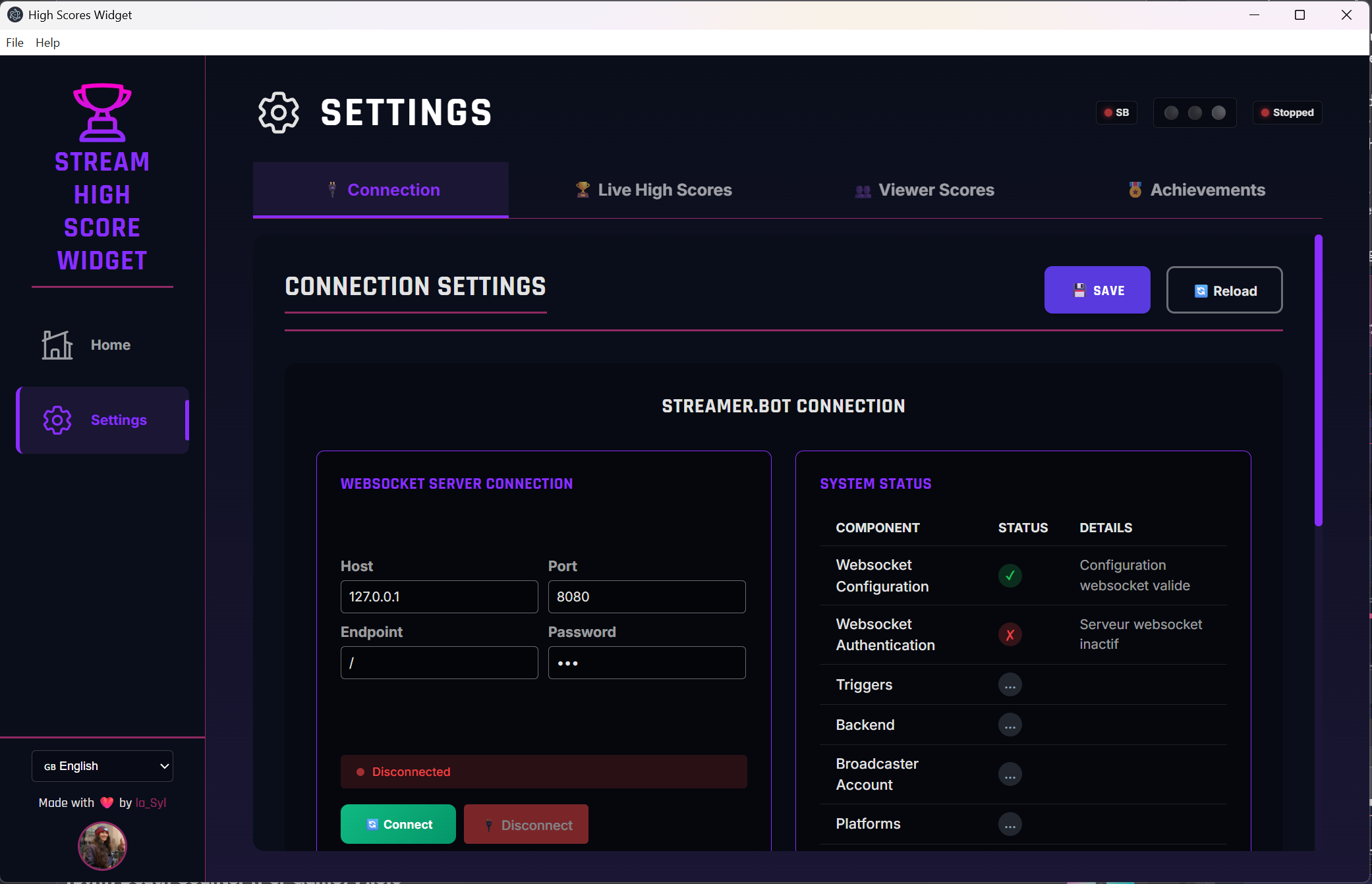
SendMessage() request, which requires authentication to work. We recommended enabling authentication on your Streamer.bot WebSocket server and saving the password in the widget to enjoy full functionality. However, this is optional if you do not wish to receive feedback messages from the widget.To set up your connection:
- Go to Configuration > Connexion > Connexion au server websocket.
- Enter your connection details.
- Click "Save" in the top-right corner.
Widget Options
On this page, you can select the platforms you wish to use, the triggers that control the widget, and a list of users to ignore for Live Score calculations.
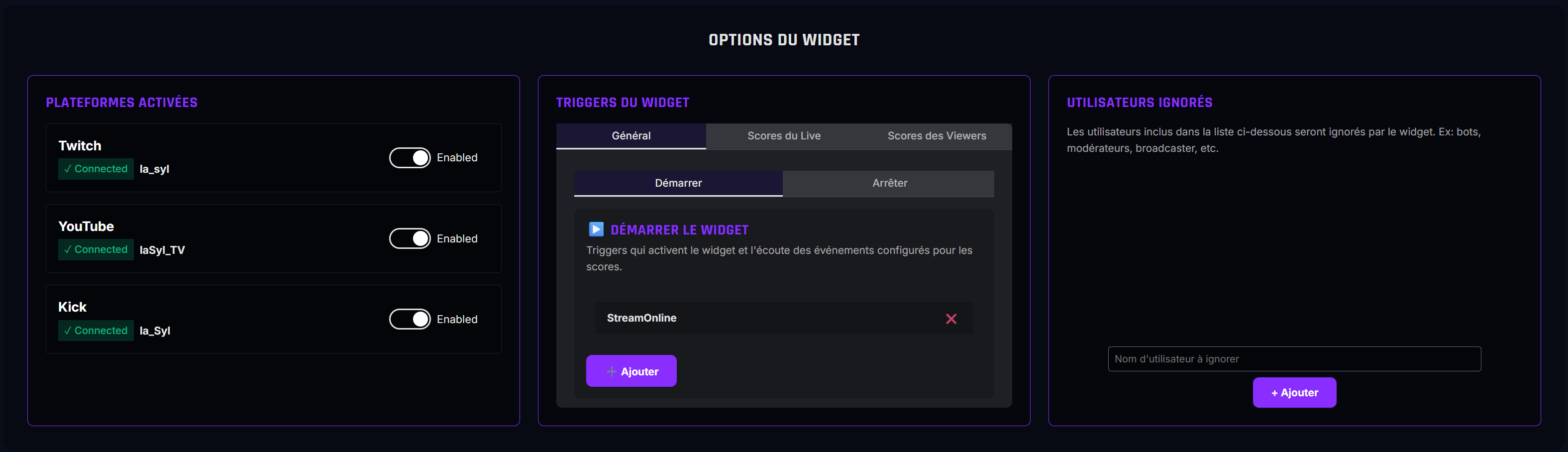
General: Triggers used to enable/disable the widget.
Live Scores: The trigger that resets live scores to 0.
Viewer Scores: Triggers that activate the display of viewer cards with their associated parameters.
Live Scores
Configuration > Live High Scores
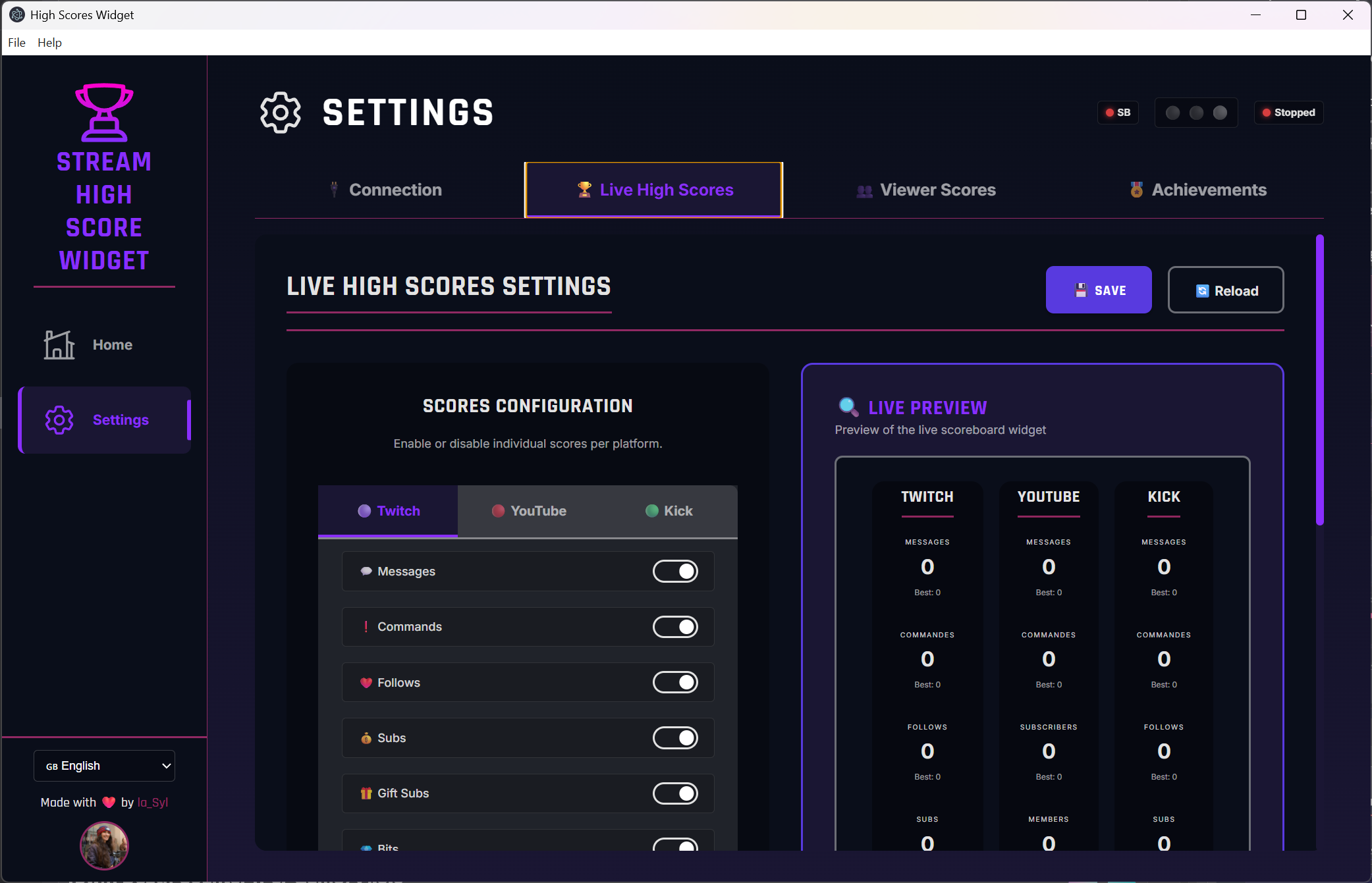
Here, you can toggle individual scores on or off for the scoreboard. More configuration options will be added in future updates.
Viewer Scores
Configuration > Viewer Scores
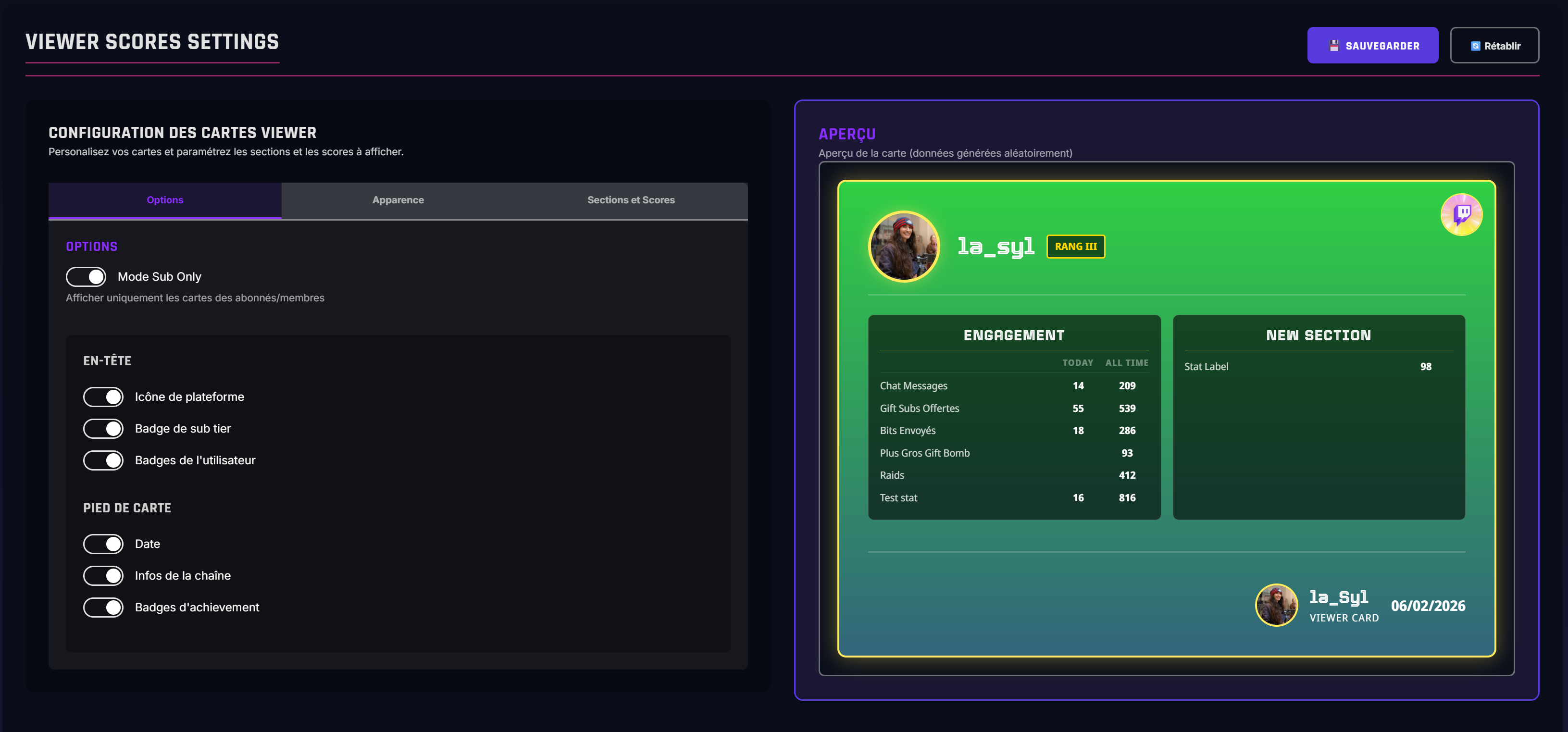
From this page, you can configure:
- Which sections appear on the widget.
- The appearance of the viewer card.
- The specific scores displayed on the card.
Further details on configuring sections and scores can be found in the next section.
Achievements
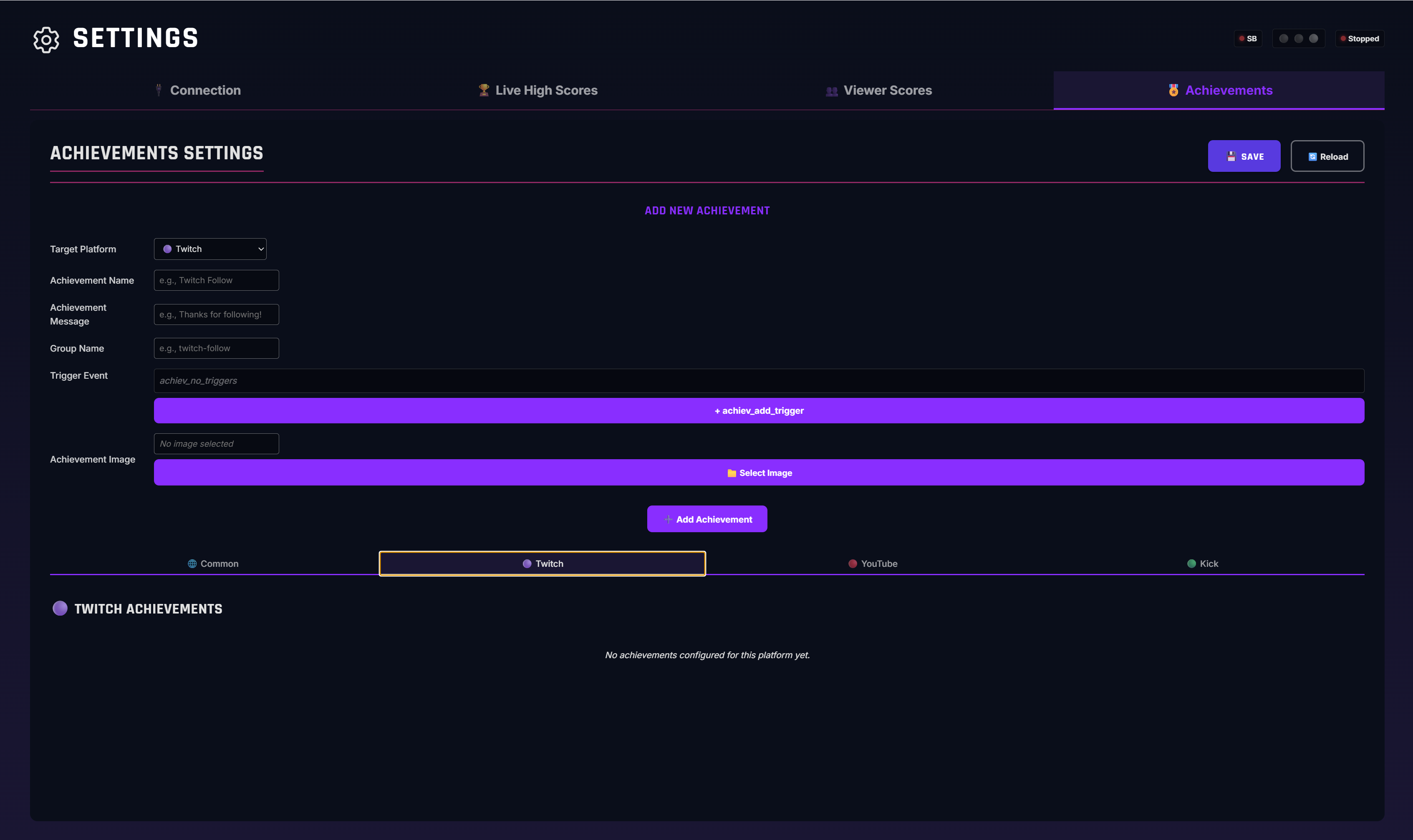
This page allows you to set up viewer achievements. It works similarly to the scores page. Refer to the next section for details on general logic and available options.
Import Views into your Streaming Software
The widget runs a local server on your PC, allowing views to be accessed via URLs. These URLs are provided on the widget's home page, ready to be copied.
To import a view, simply copy the relevant link, add a new Browser Source in your streaming software (OBS, etc.), and paste the link into the URL field.
Once these steps are complete, simply activate the widget via a trigger or the control button to start listening for events and tracking scores.
Adding Triggers
Triggers are events received from Streamer.bot. They are used by the widget for controls and score increments.
When adding a new trigger—whether to control the widget or modify scores—you can add a condition to ensure the trigger only activates when a variable holds a specific value.
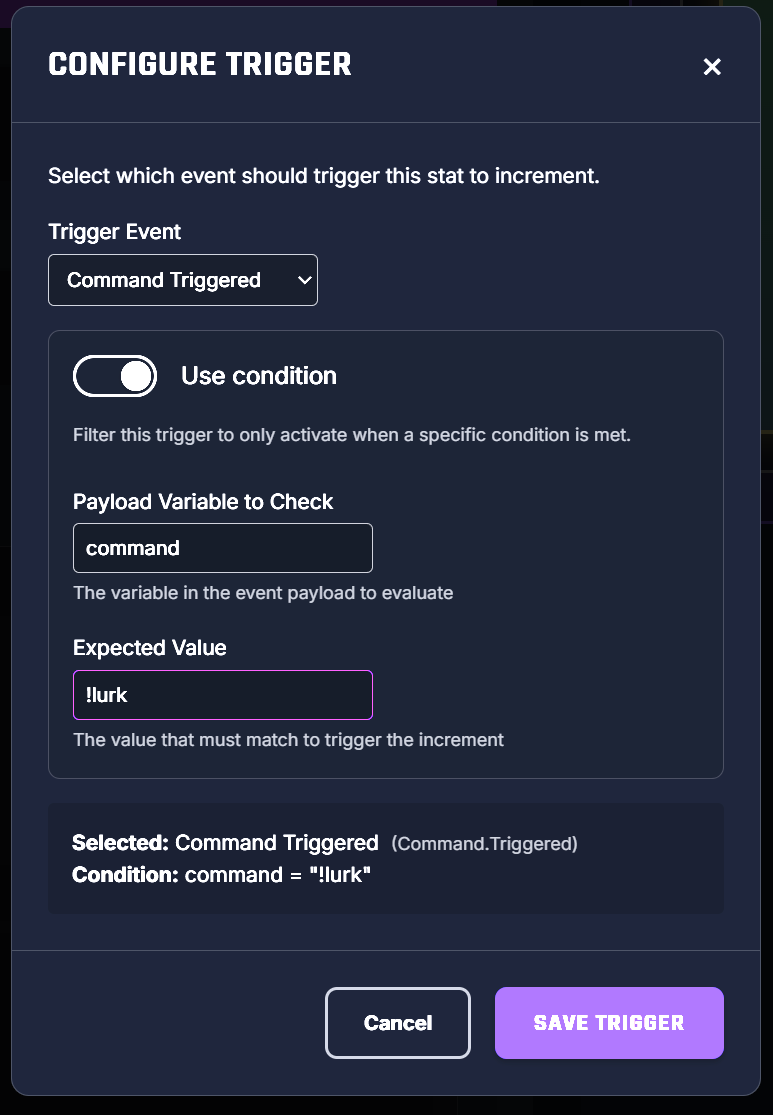
In the payload variable to check field, enter the name of the variable you want to filter by. In the value field, enter the value required to fire the trigger.
Features
Stream High Scoreboard
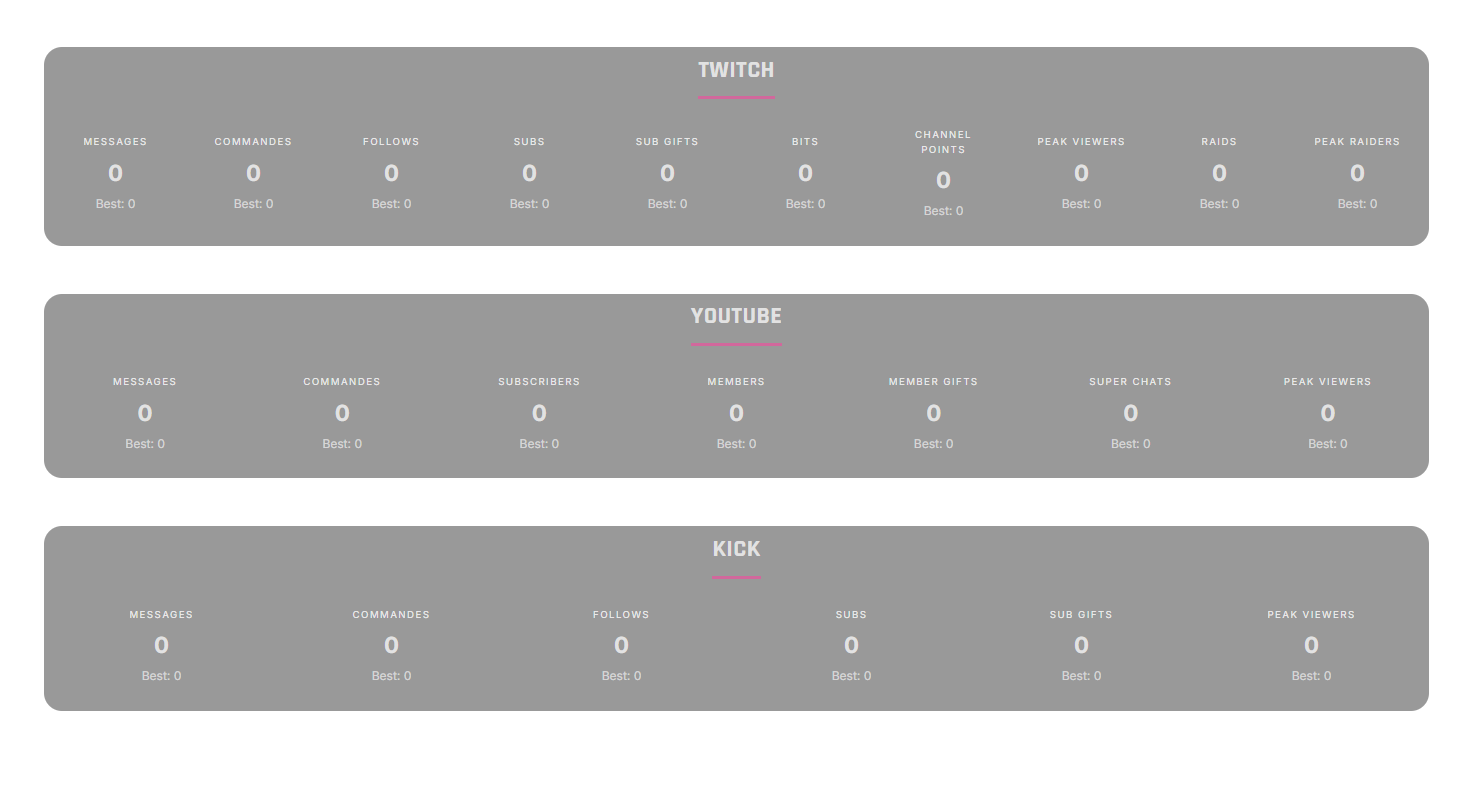
The stream scoreboard displays general scores for each platform enabled in the widget. You can toggle each score individually via the configuration page. More customisation options will be introduced in the future.
Event sent to Streamer.bot
Streamer.bot event sent: New Live High Score
| Argument | Description | Example Value |
|---|---|---|
scoreName | The internal name of the score | twitch-messages |
scoreLabel | The score label as displayed on the board | Messages |
scoreEvent | The exact trigger that fired the event | Twitch.ChatMessage |
platform | The platform from which the event originated | twitch |
oldValue | The previous high score value | 0 |
newValue | The new high score value | 1 |
triggeredBy | The name of the user who set the new high score | la_syl |
chatMessage | The chat message generated by the widget | 🏆 NEW RECORD! Messages: 1 (old: 0) - by la_syl |
Viewer Cards
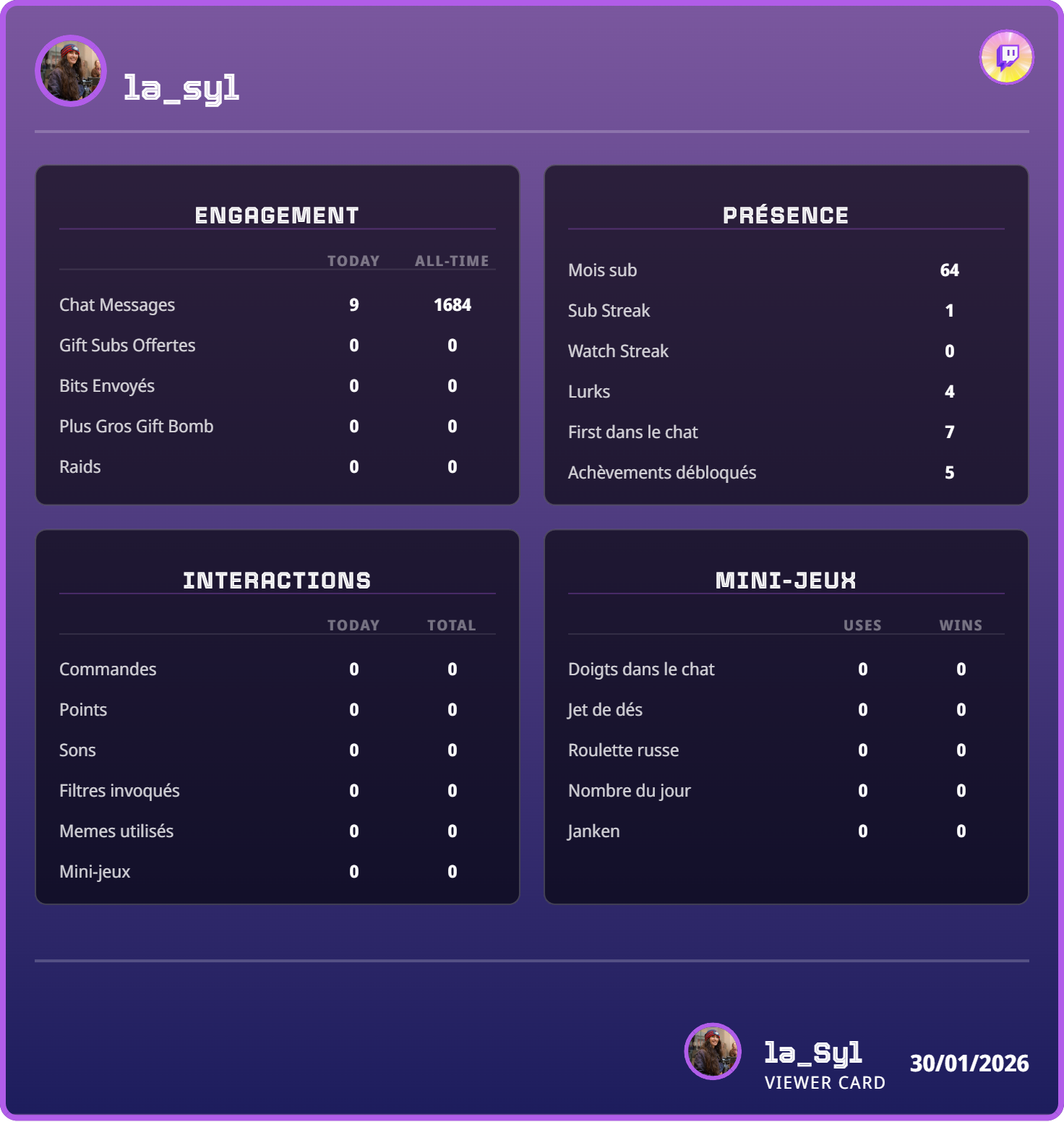
Viewer cards are 100% customisable by the streamer and display the following information:
- The viewer's name and profile picture.
- The viewer's platform badge (optional).
- Score sections configured by the streamer.
- Achievement badges unlocked by the viewer (optional).
- The streamer's name and profile picture (optional).
- The date the card was viewed (optional).
Customisation options are available under Configuration > Viewer Scores.
Configuration Details
In the Sections & Scores area, you can build your viewer scoring system.
Sections
Sections act as containers for scores. They can have one or two columns. When a section uses two columns, you can title each column individually. This also affects how score rows are configured.
1 Column
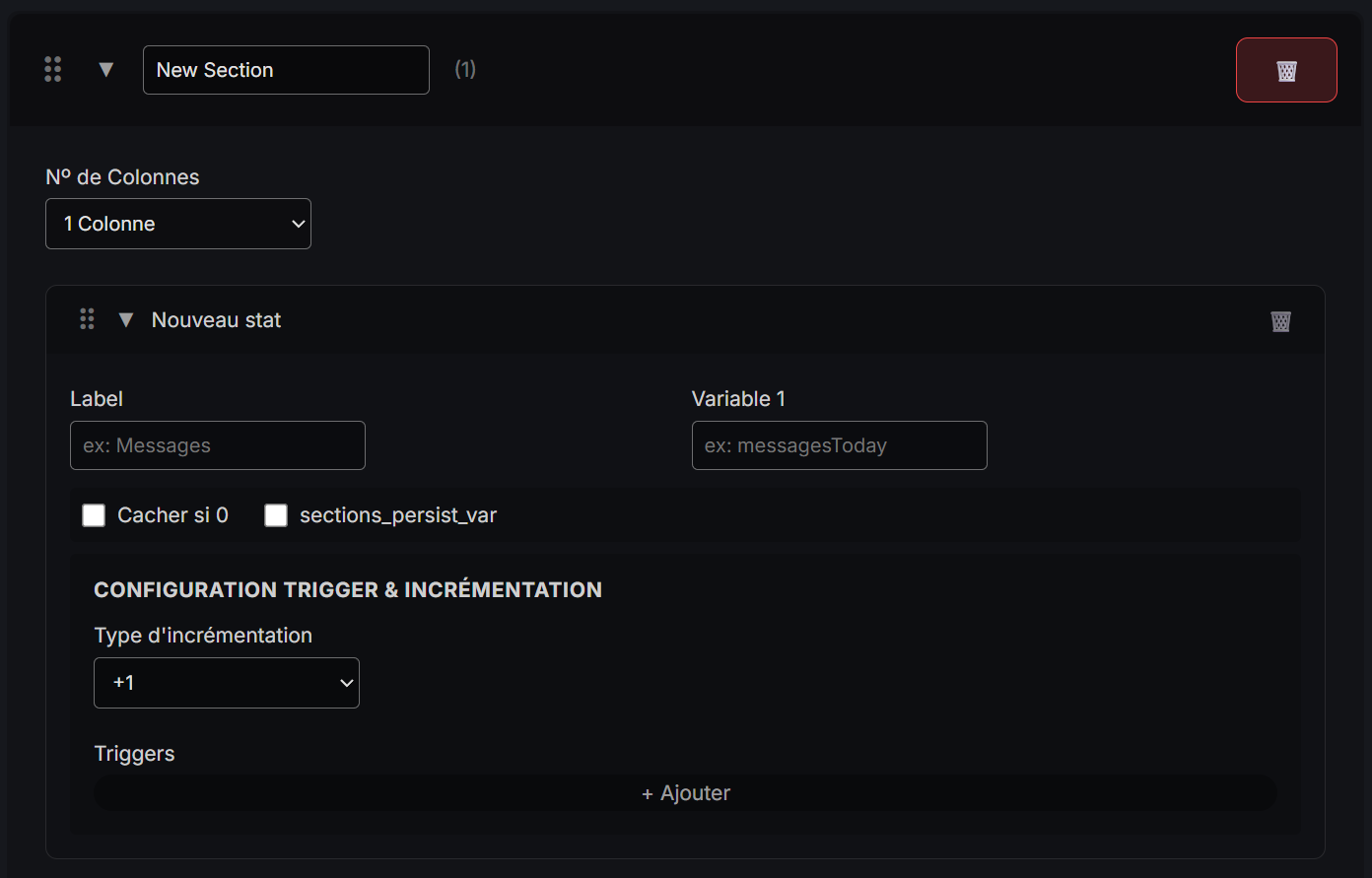
| Name | Field Type | Description |
|---|---|---|
| Label | Text | The score title displayed on the card. |
| Variable | Text | The variable name to save in Streamer.bot. |
| Hide if 0 | Checkbox | Hide the row if the viewer's score is 0. |
| Persisted | Checkbox | Determines if the variable is saved in temp globals or persisted globals within Streamer.bot. |
| Increment Type | Dropdown | Defines how the score is incremented. |
| Trigger | Dropdown | The trigger that activates the score increment. |
2 Columns
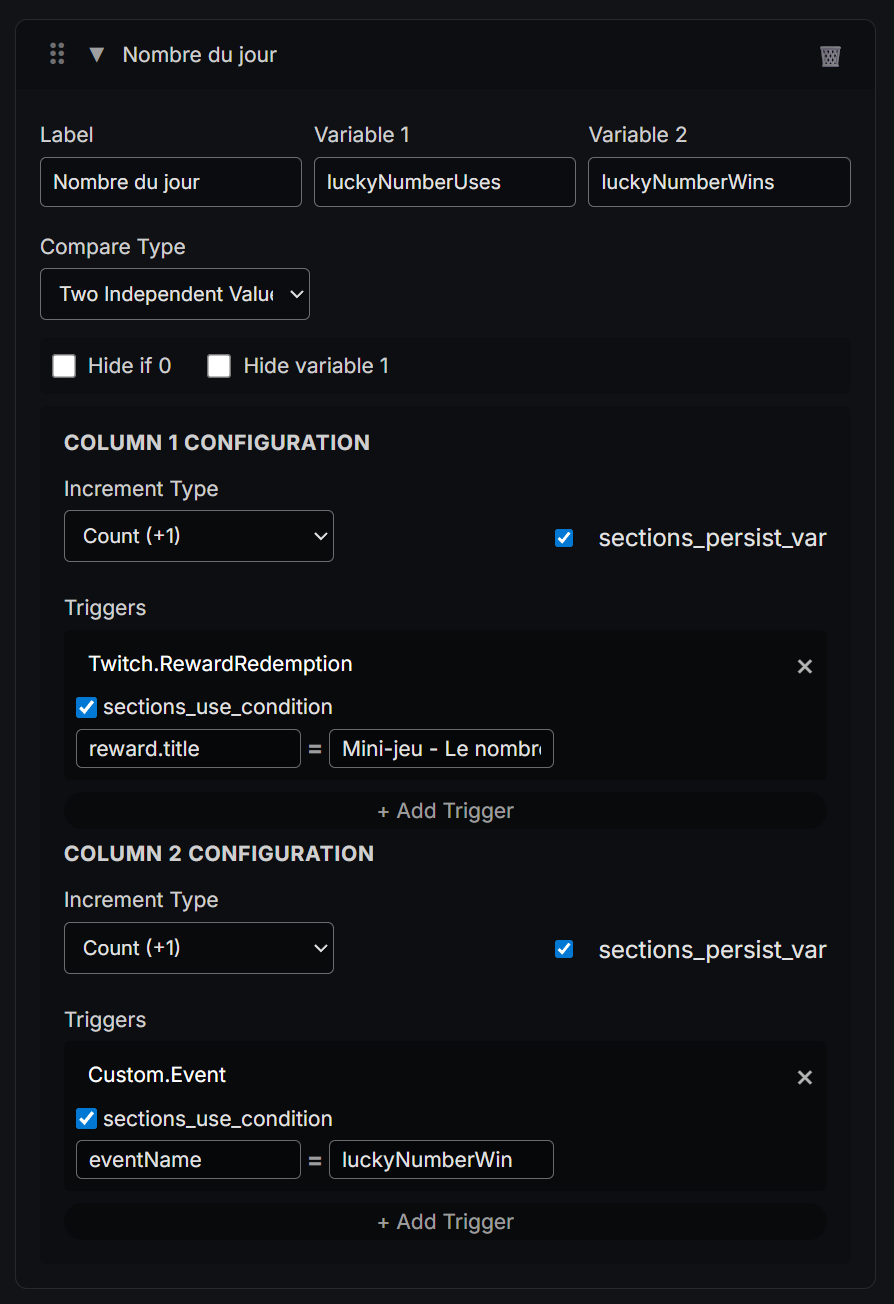
| Name | Field Type | Description |
|---|---|---|
| Label | Text | The score title displayed on the card. |
| Variable 1 | Text | The variable name to save in Streamer.bot. |
| Variable 2 | Text | The variable name to save in Streamer.bot. |
| Hide if 0 | Checkbox | Hide the row if the viewer's score is 0. |
| Hide variable 1 | Checkbox | Hide the row if variable 1 is 0. |
| Compare Type | Dropdown | The type of comparison between the two variables. This affects how scores are saved. |
| Increment Type | Dropdown | Defines how the score is incremented. |
| Trigger | Dropdown | The trigger that activates the score increment. |
Increment Types & Variable Comparison
Increment Type
| Name | Description | Additional Variable |
|---|---|---|
| Count (+1) | Adds 1 to the score. | Not required |
| Add Value from Payload | Adds the value of a payload variable to the score. | Yes |
| Set Value from Payload | Replaces the score with the value of a variable. | Yes |
| Keep Maximum | Compares the current score with a variable and keeps the highest value. | Yes |
Compare Type
| Name | Description | Triggers Required |
|---|---|---|
| Today VS All Time | Saves variable 1 to temp user globals and variable 2 to persisted user globals. | 1 |
| Current VS Best | Always replaces variable 1 with the set value. Variable 2 is only updated if variable 1 is higher than variable 2. A New Viewer High Score event is sent to Streamer.bot when this occurs. | 1 |
| 2 Independant Values | Allows you to manage two variables independently of each other. | 2 |
Event sent to Streamer.bot
Streamer.bot event sent: New Live High Score
Achievements
You can also configure achievements within the widget. These are awarded automatically when a viewer meets the configured conditions. The viewer will be added to the corresponding Streamer.bot group, and the chosen badge will appear on their viewer card.
| Name | Field Type | Description |
|---|---|---|
| Platform | Dropdown | The platform associated with the achievement. "Common" achievements can be triggered by all three platforms. |
| Name | Text | The name of the configured achievement. |
| Message | Text | Message sent to chat when the achievement is unlocked. |
| Streamer.Bot Group Name | Text | Name of the group to which the viewer will be added upon unlocking the achievement. |
| Trigger(s) | Dropdown | Trigger used to award the achievement. Multiple triggers can be set for a single achievement. |
| Badge | File Selector | The image displayed on the card of viewers who unlock this achievement. Optional. |
Trigger Conditions
For achievements, you have an additional option to set a trigger condition. You can choose the type of variable to evaluate and a logical operator to determine how the variable's value is checked.
If you select the "threshold" option, you must complete the following fields:
- Variable Name
- Variable Type
- Operator
- Value
Event sent to Streamer.bot
Streamer.bot event sent: New Achievement Unlocked
| Argument | Description | Example Value |
|---|---|---|
userName | Name of the viewer who unlocked the achievement | twitch-messages |
platform | Platform of the viewer who unlocked the achievement | Messages |
achievementName | Achievement name as defined in configuration | Twitch.ChatMessage |
groupKey | The group name corresponding to the unlocked achievement | twitch |
message | The chat notification message sent by the widget | 0 |
Troubleshooting
The "System State" section is designed to detect and display errors. If something isn't working as expected, check here first to identify the issue.
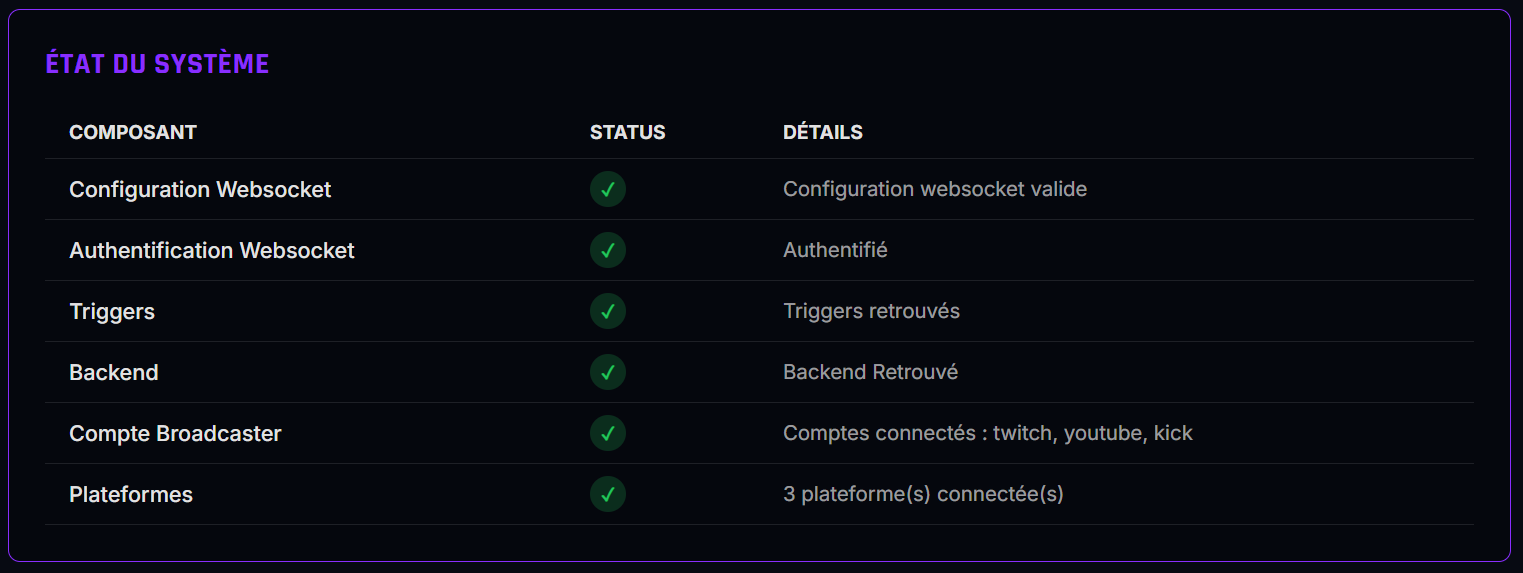
| Component | Details | Solution |
|---|---|---|
| WebSocket Configuration | Indicates if WebSocket connection details are valid. | Correct the details on the WebSocket configuration page, save, and attempt to reconnect. |
| WebSocket Authentication | Indicates if the user is authenticated (optional). | Verify that authentication is enabled in WebSocket settings, check your password, and retry the connection. |
| Triggers | Confirms if triggers were successfully retrieved from Streamer.bot. | Should normally pass without error if the previous two steps are valid. If not, restart the widget with Streamer.bot running in the background. |
| Backend | Verifies that the Widget Backend action is found in Streamer.bot. | Confirm you have imported the action and have not renamed it. |
| Broadcaster Account | Confirms the broadcaster account was found. | Same instructions as for Triggers. |
| Platforms | Lists platforms the broadcaster account is connected to. | Verify in Streamer.bot that you are connected to your broadcaster account for each platform used. |
If you discover any bugs, please send an email to support including a description, screenshots, and your log file.