

Streamer Bingo
Quick Start
Description
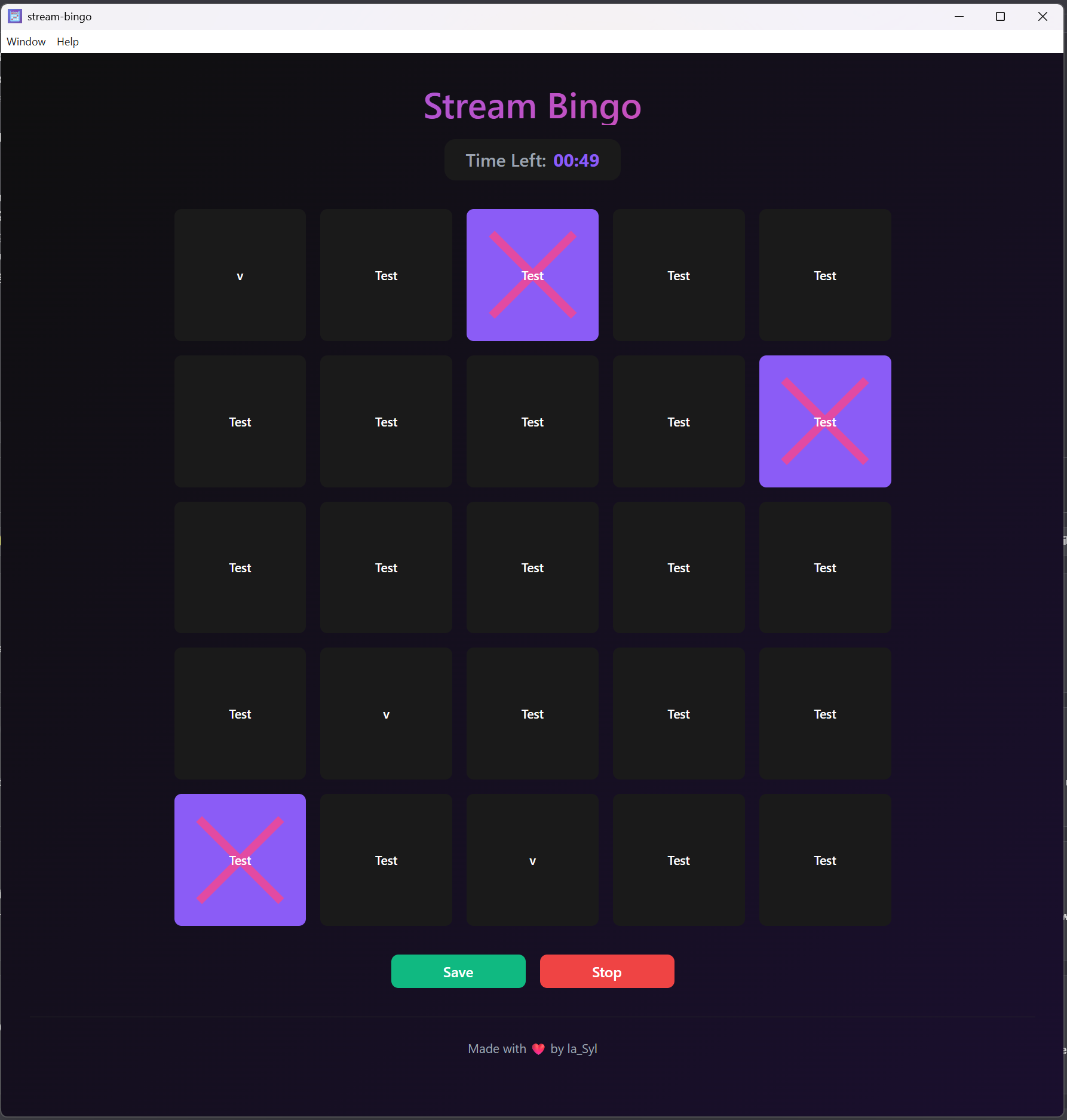
The Stream Bingo game is a Bingo application that communicates with Streamer Bot to allow you to create your own bingo grid and trigger custom events via Streamer Bot when you complete a row, column, or the entire grid.
Installation and Configuration
Import the actions into Streamer Bot.
Import the Streamer Bot actions provided in the downloaded file.
Start the websocket server
The action does not require any authentication to be enabled to function properly. You can use custom settings. You will be able to configure your connection details directly from the application.
Customise the actions
More details about triggers and arguments passed in the triggers are available below. You are free to do whatever you want in this part, let your imagination run wild!
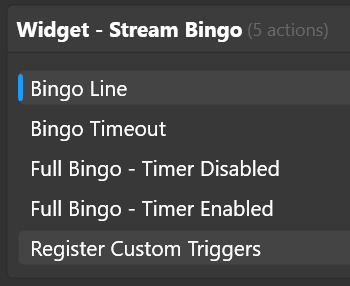
Register Custom Triggers action automatically adds the custom triggers in Streamer Bot every time Streamer Bot restarts. Do not edit it or you risk breaking the communication between the widget and the software.Start the application and configure your first bingo!
The game is provided in the Interactive Stream Bingo 1.0.0.exe application. More details about the settings and how the game works are available below.
Features and Settings
Features
The widget's basic features are:
- Multilingual interface in French, English, and Spanish.
- Automatic connection with Streamer Bot via websocket.
- Settings save and restore.
- Error detection and notification when creating a new grid.
- Automatic and manual save and restore of the grid state.
If you have any suggestions or requests, feel free to send feedback!
Websocket Settings
Under the Websocket Settings tab, you will find a connection indicator as well as fields allowing you to enter the connection information for your Streamer Bot instance's websocket server.
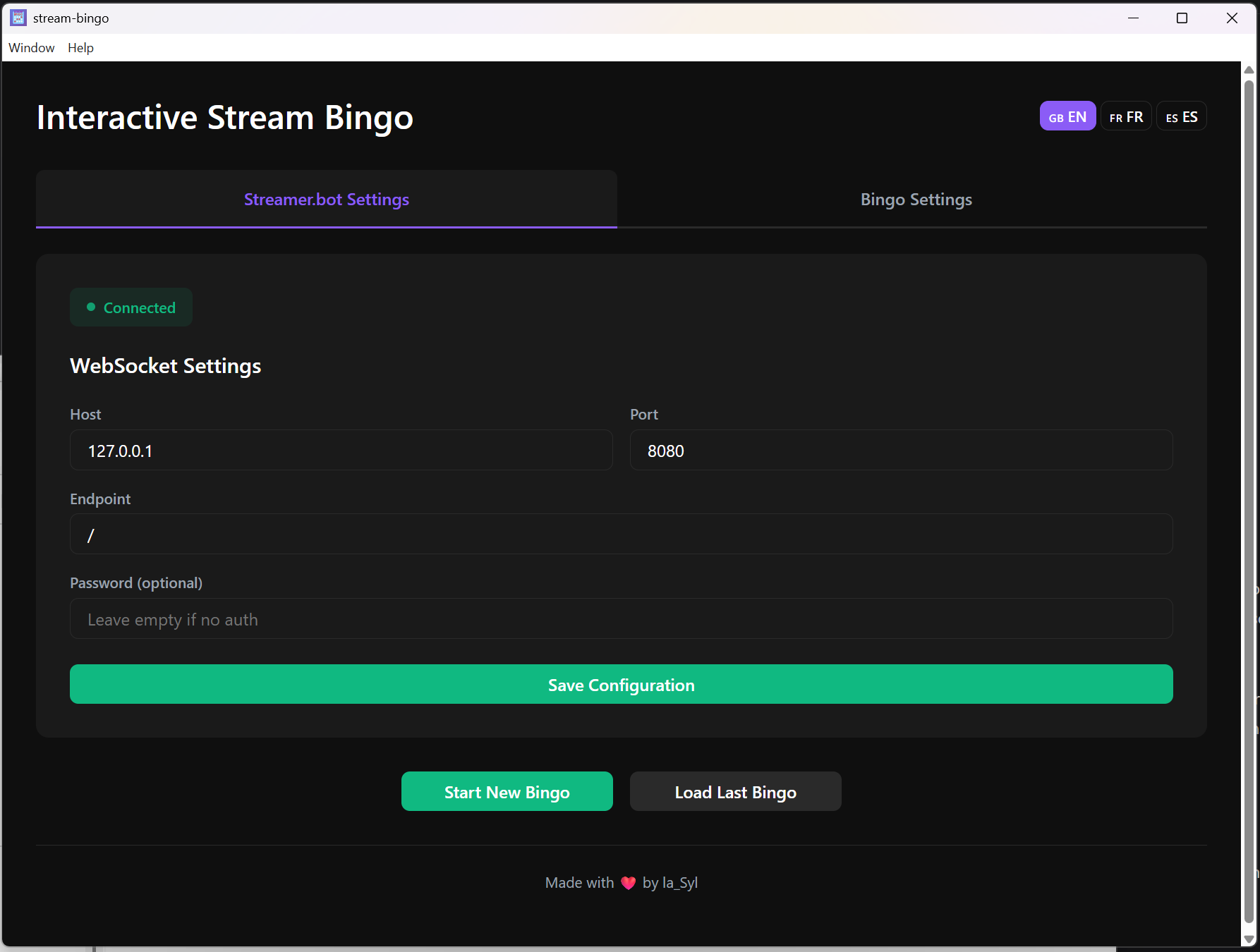
The default settings are already entered. If you use them, you should not have to do anything except click on save configuration to connect. Otherwise, adapt your connection information before clicking save.
Bingo Settings
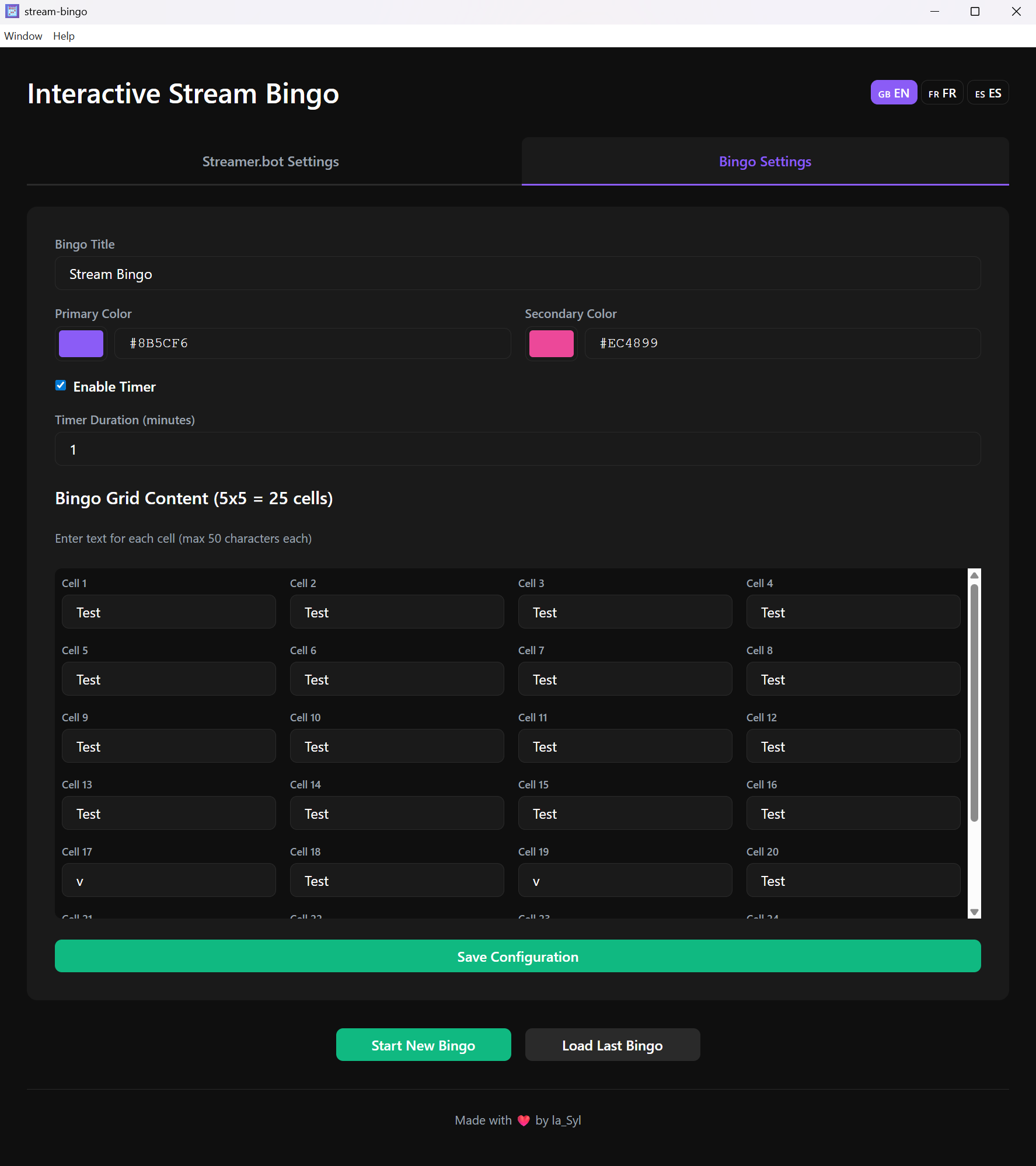
Under the Bingo Settings tab, you will find the fields that will allow you to customise your grid. If anything is missing before starting a new game, a pop-up will open with a description of the error.
| Title | Description |
|---|---|
| Title | The title displayed above the bingo |
| Primary Colour | The background colour of checked boxes |
| Secondary Colour | The cross colour of checked boxes |
| Enable Timer | Activates a timer to play in race against time mode |
| Timer Duration | The timer duration in minutes |
| Bingo Grid | The content of each box in the bingo grid (max 50 characters) |
Communication with Streamer Bot
Triggers
The widget sends 4 different triggers to Streamer Bot depending on the events detected during the game.
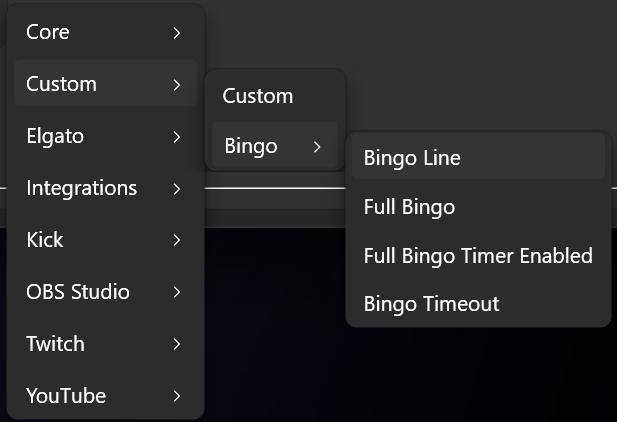
| Trigger Name | Condition | Arguments | triggerCustomCodeEventName |
|---|---|---|---|
| Bingo Line | When a new line is completed | type, number, totalCompleted | bingo_line |
| Full Bingo | When a grid is completed and there is no active timer | - | bingo_full |
| Full Bingo - Timer Enabled | When a grid is completed and there is an active timer | - | bingo_full_timer |
| Bingo Timeout | When the timer reaches 0 before the grid is completed | - | bingo_timeout |
Arguments
Three arguments are sent by the Bingo Line Trigger.
| Name | Description | Value |
|---|---|---|
type | The type of line that was just completed | row, column |
number | The number of the row/column that was just completed | Number between 1 and 5 |
totalCompleted | The total number of rows/columns completed so far | Number between 1 and 10 |
__source: CustomCodeEventtriggerName: Custom Code EventtriggerCategory: Custom
Troubleshooting
The widget does not connect to Streamer Bot.
- Check that the websocket server is active.
- Check your saved settings in the app.
- Click on save configuration to force a reconnection.