

Discord Screenshot Auto Upload
Description
The discord screenshot auto upload is a widget that allows you to automatically send images to the channel of your choice on your Discord server. Useful for automatically transferring screenshots taken during a stream, but you can use this action for any type of file.
General Operation
The action is built with a Folder Watcher trigger.
Streamer Bot automatically detects when a new file appears in the selected folder and triggers the action. Parameters such as the name and folder in which the file was saved are passed directly by the trigger. The username and profile picture are automatically saved via the sub-actions provided in the template.
Action Flow
- The action receives the trigger
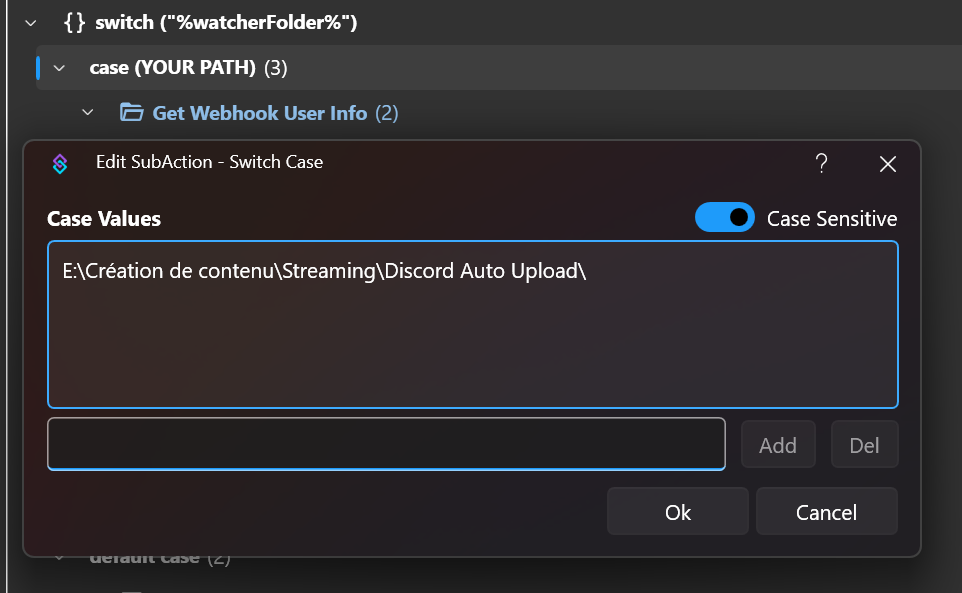
- The switch detects which folder was modified and adapts the information to send in the webhook as well as the webhook to use
- The screenshot is sent with the pre-configured information
- A message is sent in the Twitch chat to notify viewers or warn them in case of error.
If the screenshot is not taken by Streamer Bot, you can change the value of the webhookUser and webhookProfilePicture arguments to whatever you want. If all screenshots are taken via Streamer Bot, you can move the "Get Webhook User Info" folder outside the switch to avoid unnecessary duplications.
Installation and Configuration
Import the actions into Streamer Bot.
Click on "import" and drag the actions file into the import window.
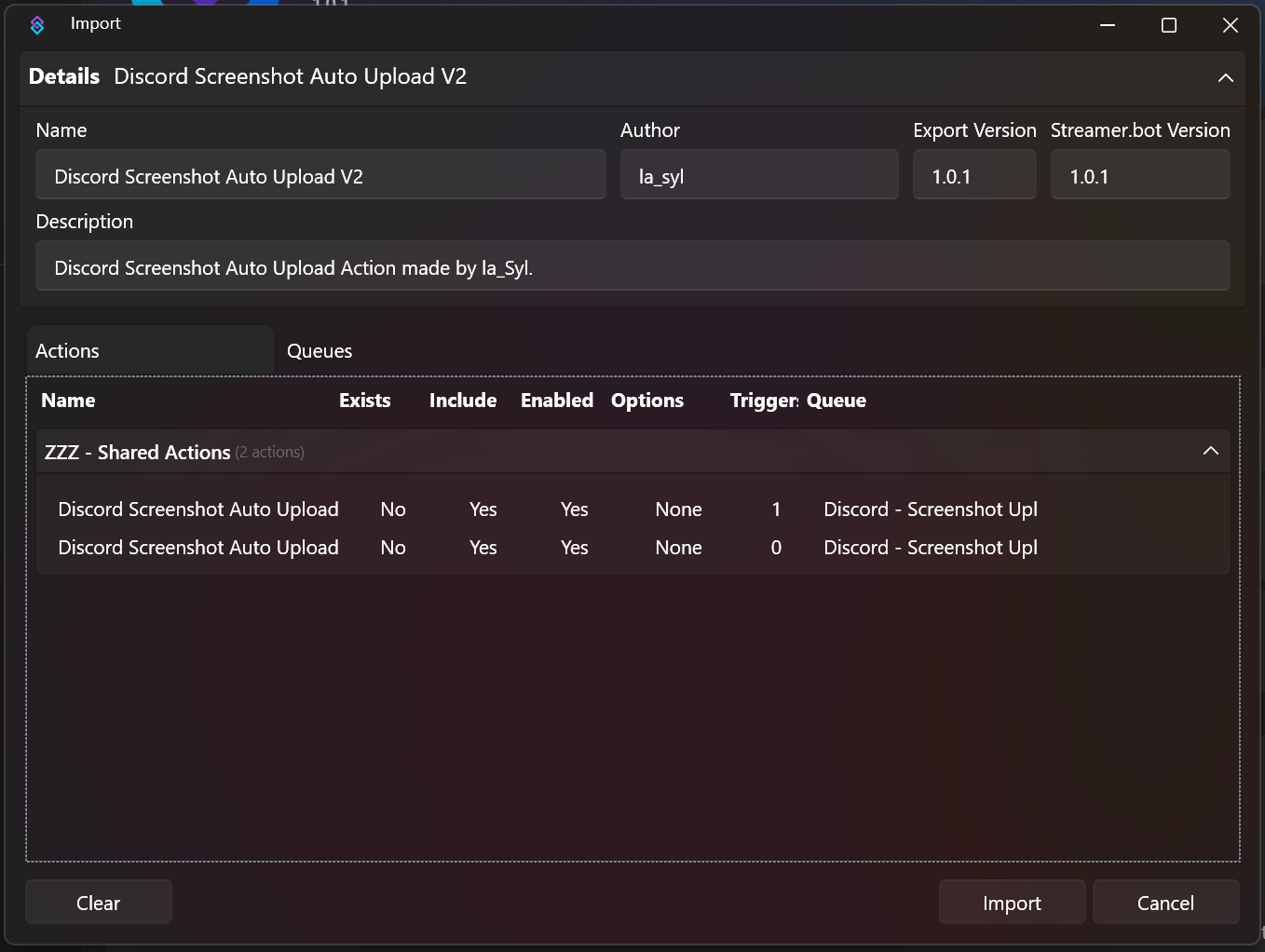
Create your folder watcher
- Go to Services > File/Folder Watcher
- Right click > Add
- In the folder field, select the folder where your screenshots are sent.
- In the filter field, enter
*then click ok.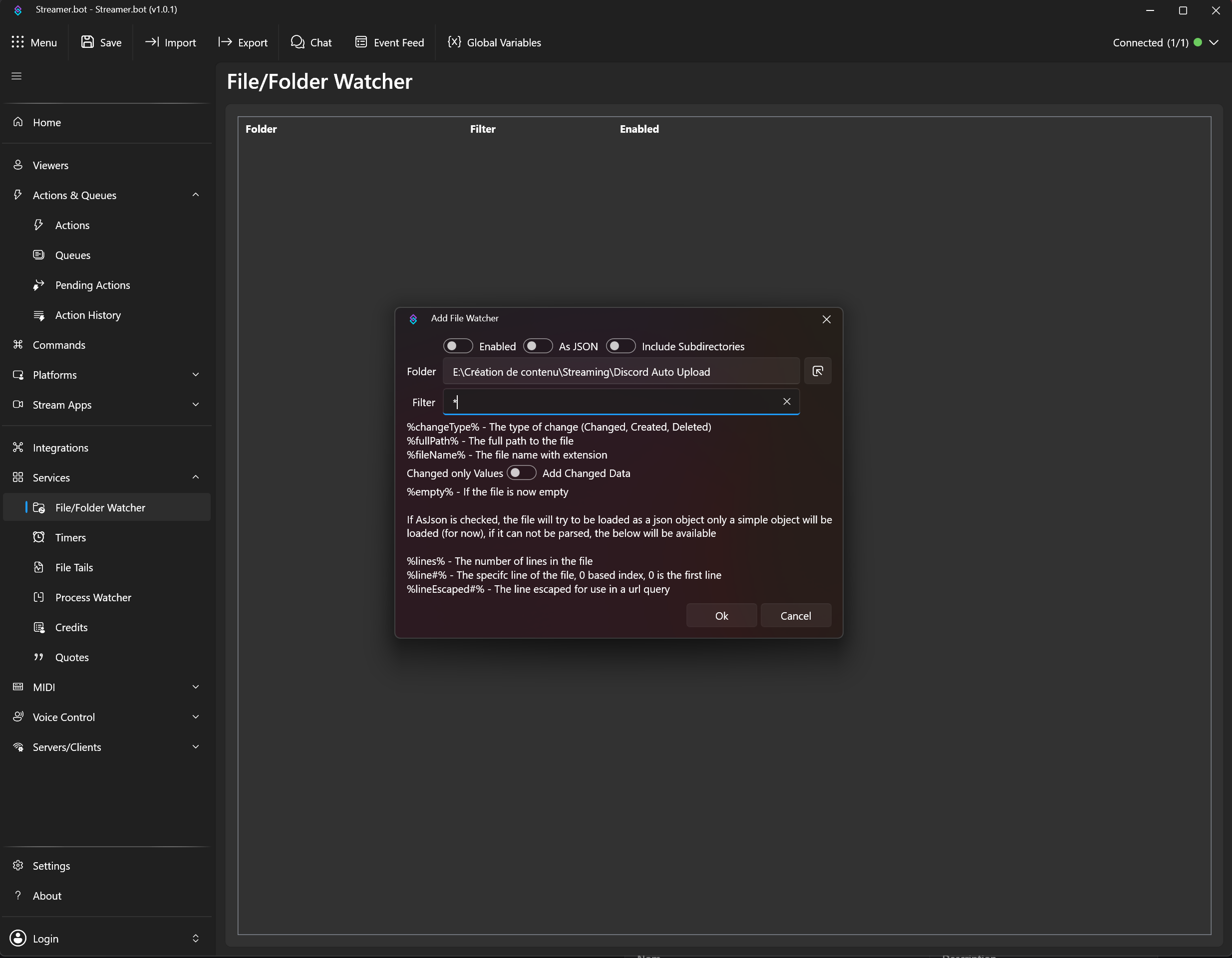
Configure the Discord Screenshot Auto Upload action
- Modify the watcher used in the trigger
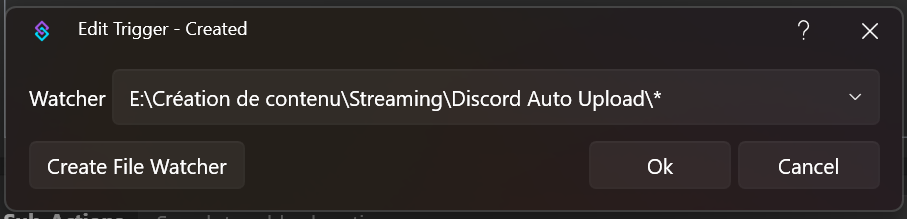
- Modify the switch case with the exact path of your folder
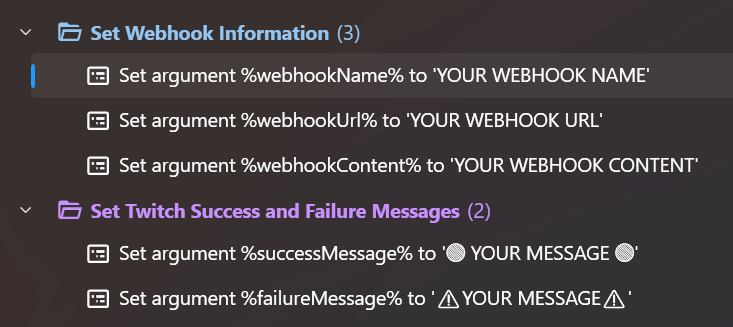
- Modify the webhook information and the messages sent in Twitch chat to notify viewers
%webhookUser% variable for the viewer's username.Configure the action that takes the screenshot
- Copy the "Set Webhook User Info" folder provided in the template action as is. No changes are required.
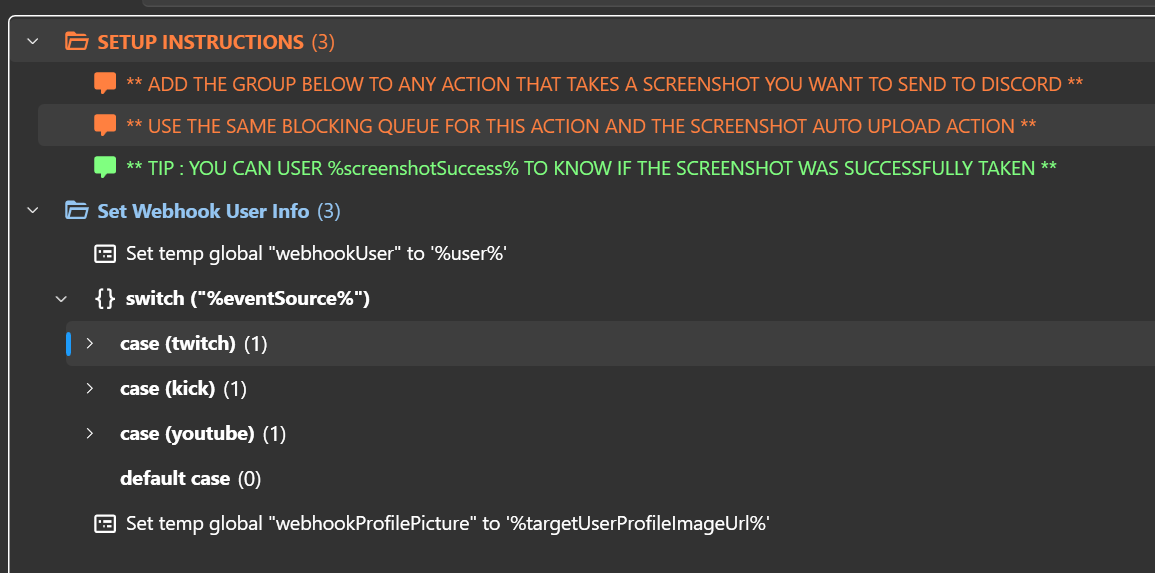
- Paste it in the action after the sub-action that takes the screenshot.
- Set your action to the same blocking queue as the
Discord Screenshot Auto Uploadaction.
Repeat these steps as many times as you want to add the desired number of webhooks.