

Twitch Shoutouts
Description
The shoutouts system allows you to send a Twitch shoutout and display a clip on your overlay, along with a personalised message according to the type of trigger received by the action and the information retrieved for the targeted streamer. It includes an automatic pause system according to the active OBS scene.
There are several pre-configured triggers:
- A manual command
- The
First wordstrigger - The
Raidtrigger
Both triggers activate the SO automatically.
Installation and Configuration
Install OBS Plugins
| Plugin name | Link |
|---|---|
Stroke Glow Shadow | https://obsproject.com/forum/resources/stroke-glow-shadow.1800 |
Source copy | https://obsproject.com/forum/resources/source-copy.1261 |
Advanced Mask | https://obsproject.com/forum/resources/advanced-masks.1856 |
Crop / Pad | https://obsproject.com/kb/crop-pad-filter |
Import Sources into OBS
- Go to Tools > Source Copy > Load Scene.
- Select the JSON file Scene UI - SO.json
- Update the video source path (you can use the one provided in the archive or your own).
- Add the SO scene to the scene where you want to display the widget.
Import the actions into Streamer Bot.
Streamer.bot Actions Configuration
Configure the triggers
The action comes pre-configured with three triggers:
- A !so command
- A
Raidtrigger - A
First Wordstrigger
To use the first words trigger
- Create a group in streamer bot for your streamer friends
- Edit the group name in the
Twitch User in Groupsub-action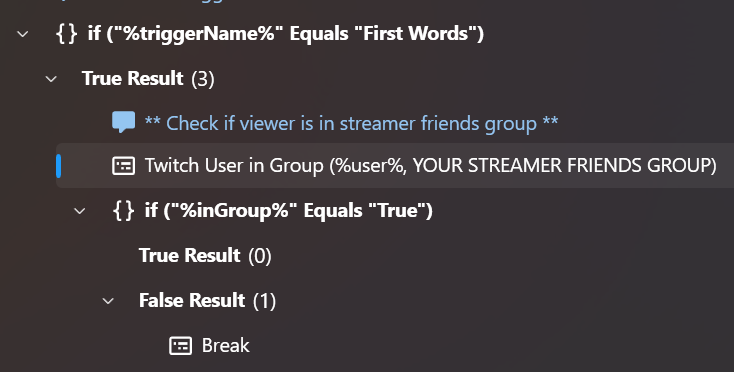
Configure the main action Send Twitch Shoutout + Get & Display Clip
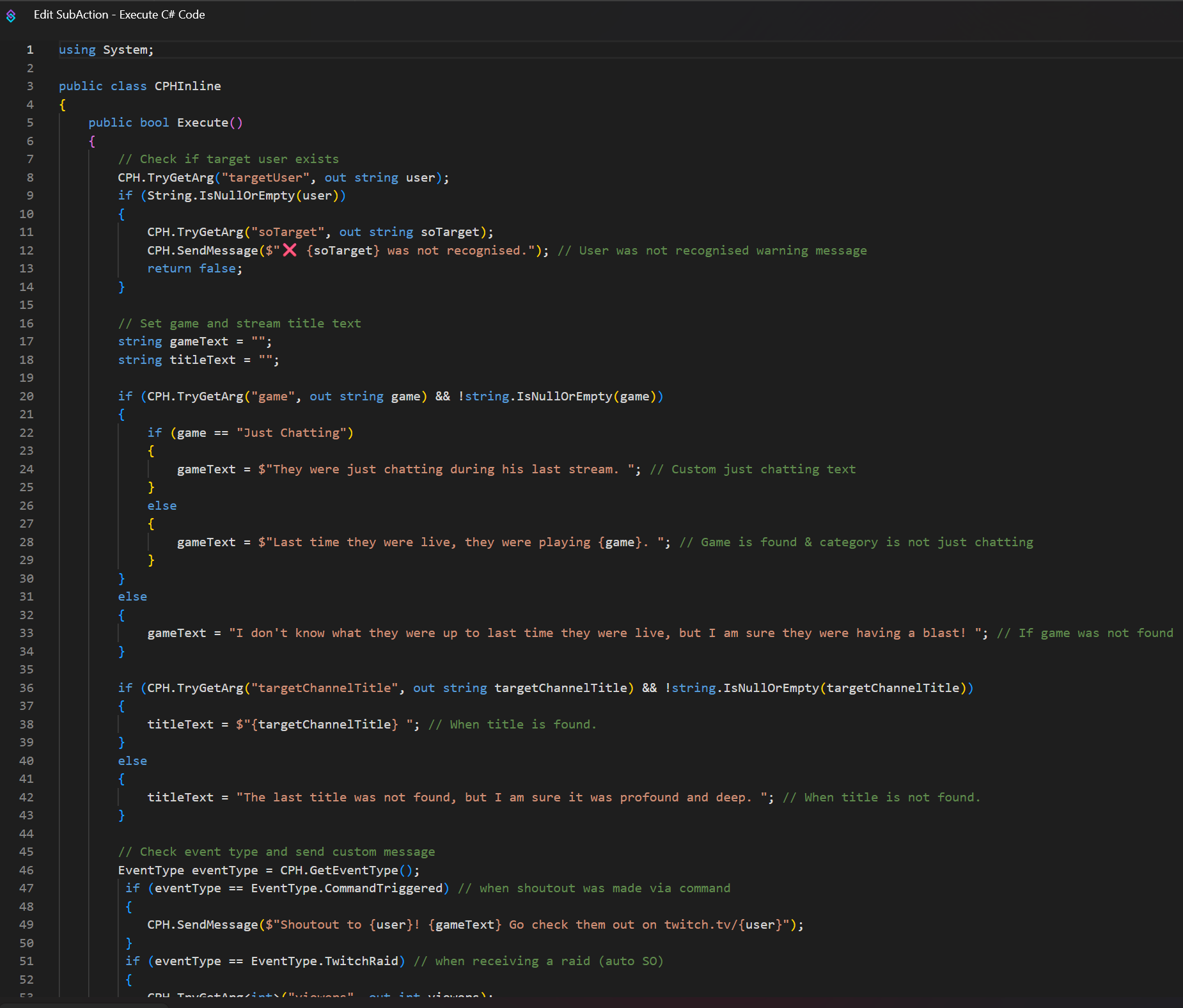
Edit the sent messages
- Go to
if %targetFetched% Equals "true">True Result - Double click on the C# action Send Custom SO chat Message
- Edit the messages sent by the bot directly (use the comments to help you).
Edit your OBS scene information
- Change the
obsUiScenevalue to the name of the scene where you placed the widget.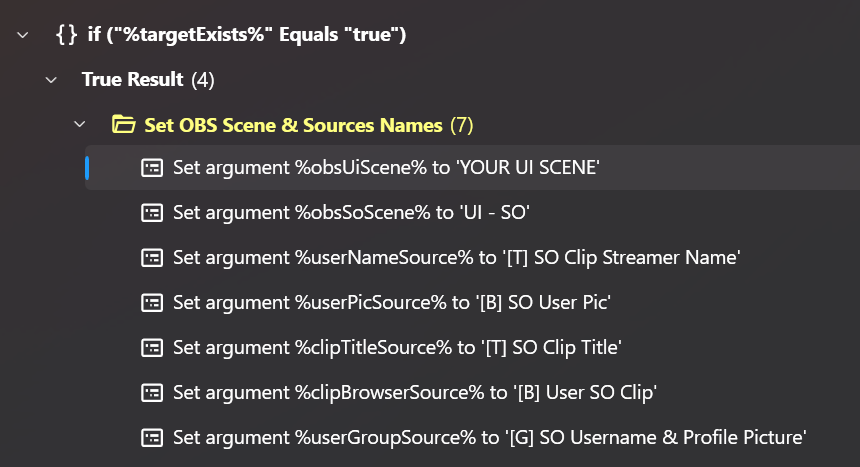
Choose your options
coolDownEnabled: adds a delay at the end of the action to prevent another SO from triggering whilst the Twitch cooldown is active. The total duration of this action will always be 2 min, clip duration included if this option is enabled.sendWarning: sends a message to Twitch chat to warn if a SO is sent whilst the Twitch cooldown is active. Disabled by default to avoid chat message overload.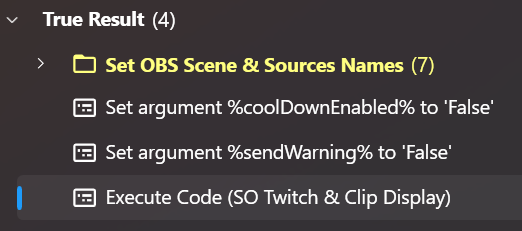
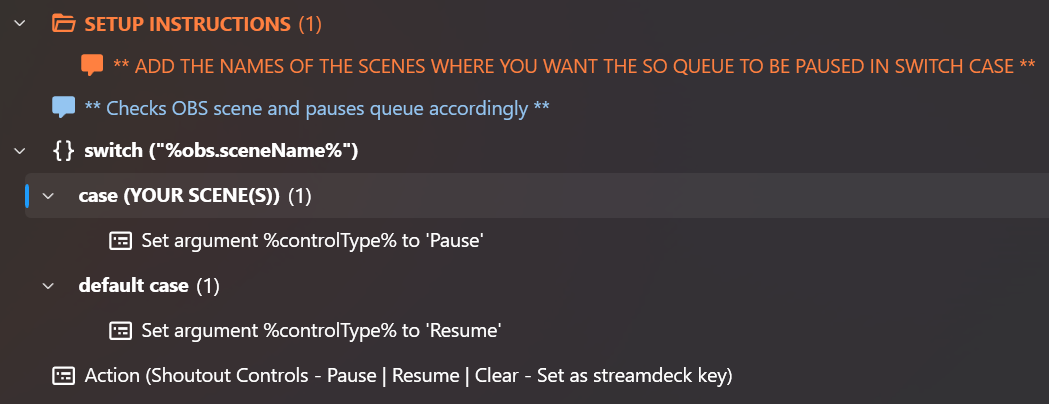
Edit the automatic pause control Set Shoutout Queue Paused State
Edit the switch case with the name of the scenes on which you want the SOs to be paused.
Edit the manual pause controls Shoutout Controls - Pause | Resume | Clear
On your stream deck:
- Add 3 streamer bot actions with the
controlTypeargument - Set the values to
Pause,ResumeandClear. - Customise the notification messages in the switch if you wish.
With these buttons you can manually pause the SOs and clear the queue if you need to.
Known Issues and Solutions
Mature Clips
Mature clips are blocked by default by Twitch. You must interact with the browser source in OBS to enable mature clips when you encounter them. OBS will remember your choice for each streamer and will continue to play their clips after the first authorisation. A better solution is being researched.
Hide Twitch Player Overlay
Add the following CSS in the custom CSS field of the browser source:
body {
overflow: hidden;
}
.video-player__overlay,
.recommendations-carousel,
.clip-page__player-overlay {
display: none !important;
opacity: 0 !important;
pointer-events: none !important;
}