

Multistream Goals & Labels
Description
The Goals & Labels widget is a browser source that displays your Twitch, Kick and YouTube goals, as well as the name of the last viewer who triggered an event.
It connects directly to Twitch to retrieve your information in real time. For Kick and YouTube, it comes with a pre-configured system that will save your information in Streamer.bot global variables and automatically increment your goals when they are reached.
Installation and Configuration
Add the Widget in OBS
- In OBS, add a Browser Source
- Untick "Local file"
- Open the widget in your browser
- Copy the link from the URL bar
- Paste it into the URL field of the OBS browser source
Import the actions into Streamer Bot.
Import the 5 required actions into your Streamer.bot instance:
Actions to import:
Goal Variables Automatic Update - Kick | YoutubeGoal Variables Automatic Update - TwitchGoal Variables Manual Update - Kick | YoutubeLast Label User Update - Twitch | Kick | YoutubeSet Goal Text - Twitch | Kick | Youtube
Enable the WebSocket server
- Open Streamer.bot
- Go to Servers → WebSocket Server
- Click on Start Server
- Default settings:
127.0.0.1:8080
Configure Kick and Youtube goals
Action: Goal Variables Manual Update - Kick | Youtube
Manually enter your goals and your current number of follows / members on Kick and Youtube platforms. Use the test trigger to trigger the action and update the global variables.
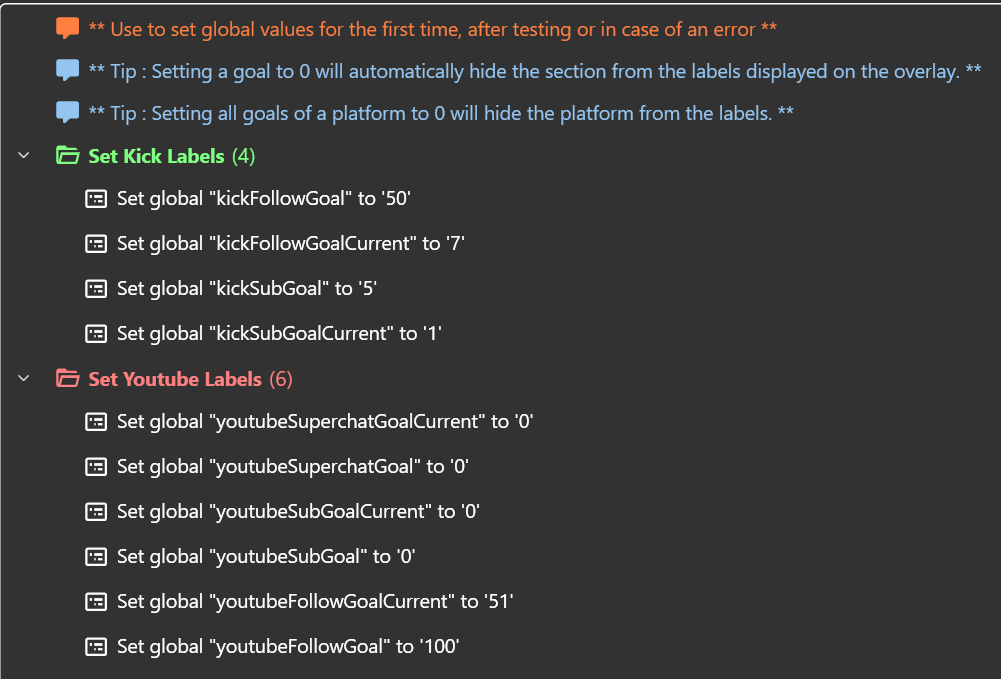
Action: Goal Variables Automatic Update - Kick | Youtube
Modify the variables in the Set Automatic Goal Renewal Values group to define the automatic increment that will be applied by Streamer Bot when your goal is reached.
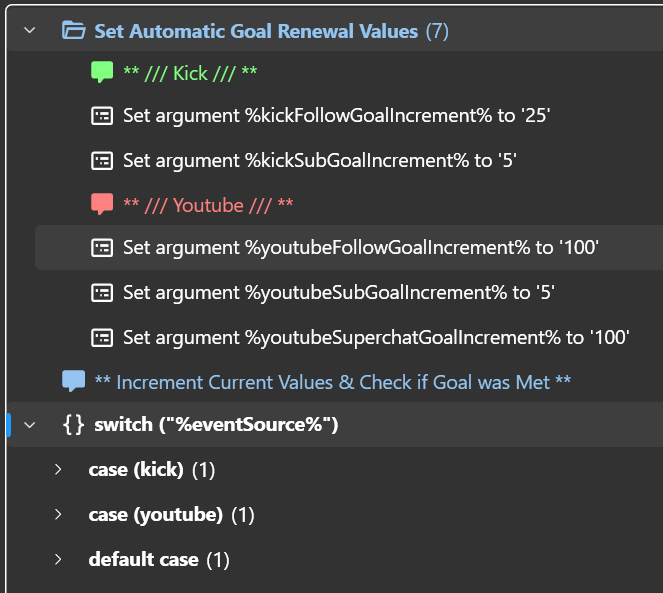
For example, if your follow goal is at 200 and you want it to move to 300 once 200 has been reached, enter "100" as the value for the kickFollowGoalIncrement argument.
Configure Twitch goals
For Twitch, information is transmitted directly by Streamer Bot client when goals are initialised or updated. You simply need to configure your goals directly on your Twitch dashboard.
Configure goal texts
Action: Set Goal Text - Twitch | Kick | Youtube
Write your goals for each platform. Use the test trigger to trigger the action and update the global variables.
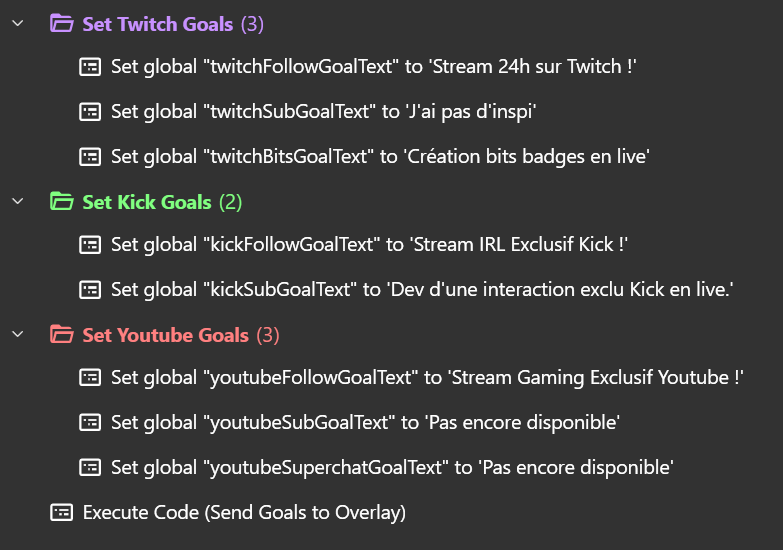
General Operation
Automatic Updates
Twitch:
- Stats update automatically via Twitch Goal Events (GoalBegin, GoalProgress, GoalEnd)
- Supports all goal types:
follow,subscription,new_subscription,new_subscription_count,new_bit,new_cheerer - The last user updates via individual events (Follow, Sub, Cheer)
YouTube & Kick:
- Stats automatically increment with each event
- The last user is updated from the event data
Manual Updates
Use the Goal Variables Manual Update action to manually define goals and current values. Useful if events were triggered whilst you were not streaming. You can also directly edit global variables in streamer bot.
Variable list
| Platform | Variable | Description |
|---|---|---|
| All | %plateform%FollowGoal | Follow goal |
%plateform%FollowGoalCurrent | Current follows | |
%plateform%FollowGoalText | Goal title text | |
%plateform%FollowGoalUser | Last follower name | |
%plateform%SubGoal | Subscription goal | |
%plateform%SubGoalCurrent | Current subscriptions | |
%plateform%SubGoalText | Goal title text | |
%plateform%SubGoalUser | Last subscriber name | |
| twitch | twitchBitsGoal | Bits goal |
twitchBitsGoalCurrent | Current bits total | |
twitchBitsGoalText | Goal title text | |
twitchBitsGoalUser | Last cheerer name | |
| Youtube | youtubeSuperchatGoal | SuperChat goal |
youtubeSuperchatGoalCurrent | Current SuperChat total | |
youtubeSuperchatGoalText | Goal title text | |
youtubeSuperchatGoalUser | Last SuperChat sender |
Troubleshooting
The widget won't connect:
- Check that the WebSocket server is running in Streamer.bot
- Check that the URL in the OBS browser source is correct
- Open the browser console (F12 in Interaction mode) to see connection errors
Stats don't update:
- Check that actions are properly triggered in Streamer.bot
- Check the Action History in Streamer.bot to see if events are firing correctly
- Make sure global variables are properly defined (not null or undefined)
A platform doesn't display:
- Check that at least ONE goal for that platform is > 0
- Check that global variables exist in Streamer.bot
Displayed data is incorrect:
- Check that variable names match exactly
- Use the Global Variables viewer in Streamer.bot to check values